Ask any manager of a remote team what fills their week, and you’ll hear about the same small problems. A client wants to know where the hours went. A new starter’s laptop isn’t ready. Someone’s computer is playing up in Townsville, and IT is in Melbourne.
None of these is a big deal on its own. Together, they eat into the week.
Here are five of the most common remote team headaches, and how two simple tools help sort each one out.
Headache One: “Can You Show Me What We Paid For?”
Clients who pay by the hour like to see the work. That’s fair, but pulling together evidence after the fact takes time.
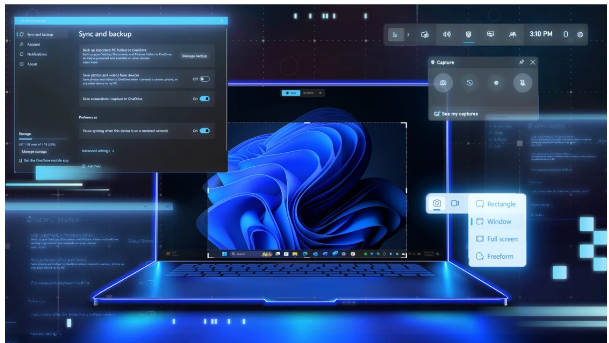
Screenshot capture software takes care of this as the work happens. Screenshots are taken at set intervals during tracked time and attached to the timesheet. When a client asks about a 10-hour block on their project, you can share a clear visual record in minutes.
It helps your team too. Staff get credit for work that’s usually invisible, like research, testing, or careful editing.
Headache Two: “My Laptop Isn’t Ready”
A remote new starter often spends their first morning waiting. The laptop arrived by courier, but the apps aren’t installed and the logins haven’t come through.
With device management software, IT can set up a laptop before it leaves the office. Work apps, email, security settings, and tracking tools are all configured remotely. When the new starter switches it on in Geelong or Darwin, it’s ready to use.
That first day sets the tone. A smooth start tells people they were expected.
Headache Three: “It’s Doing That Thing Again”
Describing a tech problem over chat is hard. “It’s doing that thing again” doesn’t give IT much to work with.
A screenshot does. It shows the error message, the screen it appeared on, and what the person was trying to do. IT can then connect to the device, apply a fix, or push an update without anyone posting the laptop back.
Over time, those screenshots become handy training material. If the same issue keeps coming up, a short guide with real examples saves everyone time.
Headache Four: “Is Everyone’s Device Secure?”
With a team spread across the country, laptops sit on kitchen tables, in cafes, and in hotel rooms. Keeping each one updated and protected by hand isn’t realistic.
This is a job device management software handles well. It keeps operating systems and apps updated, enforces strong sign in settings like multi factor authentication, and lets IT lock or wipe a laptop if it goes missing.
These steps line up with the Essential Eight, the Australian Cyber Security Centre’s recommended strategies for protecting systems. For a small business without a large IT team, that brings real confidence.
Headache Five: “How Do We Keep This Fair?”
Every manager wants tools their team feels comfortable with. Being open from the start makes all the difference.
Good screenshot capture software lets you blur sensitive details, choose how often screenshots are taken, and capture only during tracked work time. Staff can view their own screenshots, which builds trust quickly. It also helps to agree on how long images are kept.
The law is worth knowing too. Workplace surveillance rules vary by state. New South Wales and the ACT have dedicated laws, and in NSW you generally need to give staff at least 14 days’ written notice before computer surveillance starts. Victoria has also been considering stronger protections after a parliamentary inquiry reported in 2025.
The right to disconnect fits in as well. Since August 2024 for larger businesses, and August 2025 for small businesses, employees can generally refuse work contact outside their hours. Capturing only during work time respects that.
When the Two Tools Work Together
Each tool fixes its own set of problems. Used side by side, they cover the whole life of a remote role.
On day one, the laptop arrives ready, with screenshot settings already in place. During the job, screenshots support billing, training, and quick fixes. When someone moves on, IT removes access and recovers company data in one step, so nothing is left loose.
Where Nixo Fits In
Platforms like Nixo bring workforce tools together in one place. Managers can see how work is tracking and look after their team’s devices without switching between separate systems. That means less admin, clearer client records, and more time for the work that matters.
A Simple Way to Start
Pick the headache that costs you the most time right now.
If it’s client reporting, start with screenshot capture software and a clear policy your team has seen. If it’s onboarding or security, begin with device management software and get every laptop onto the same settings.
Review how it’s going after a month, ask your team for feedback, and build from there.
Frequently Asked Questions
Is screenshot capture legal in Australia? Generally, yes, with conditions. Rules vary by state, and NSW and the ACT require notice before computer surveillance.
Can staff see their own screenshots? In most good tools, yes. It’s one of the simplest ways to build trust.
Is device management only for large businesses? No. Small remote teams often see the benefits fastest, especially during onboarding.